

How to make an online payment
Step 1: After you have registered, you will see a red notification by the alert (bell) icon). This is to alert you that there is an online payment/invoice available to pay.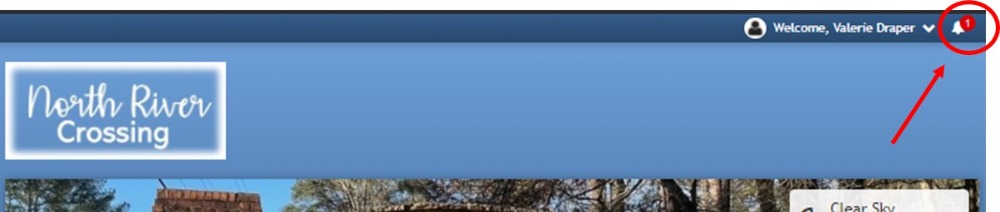
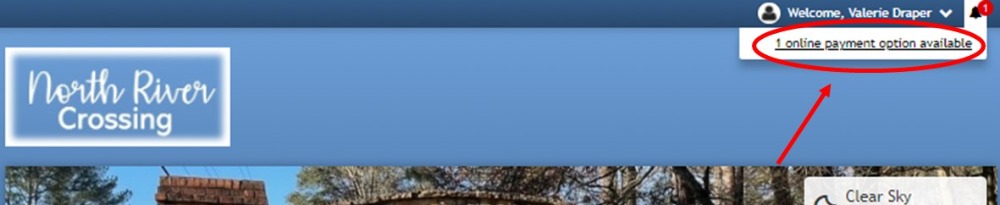
Step 2: Click on the bell icon to display the dropdown for the online payment/invoice. Click on the online payment option available. This will take you to the Online Payments Screen.
Step 3: You are now on the Online Payments screen. Click the pay icon to proceed to paying your online payment/invoice.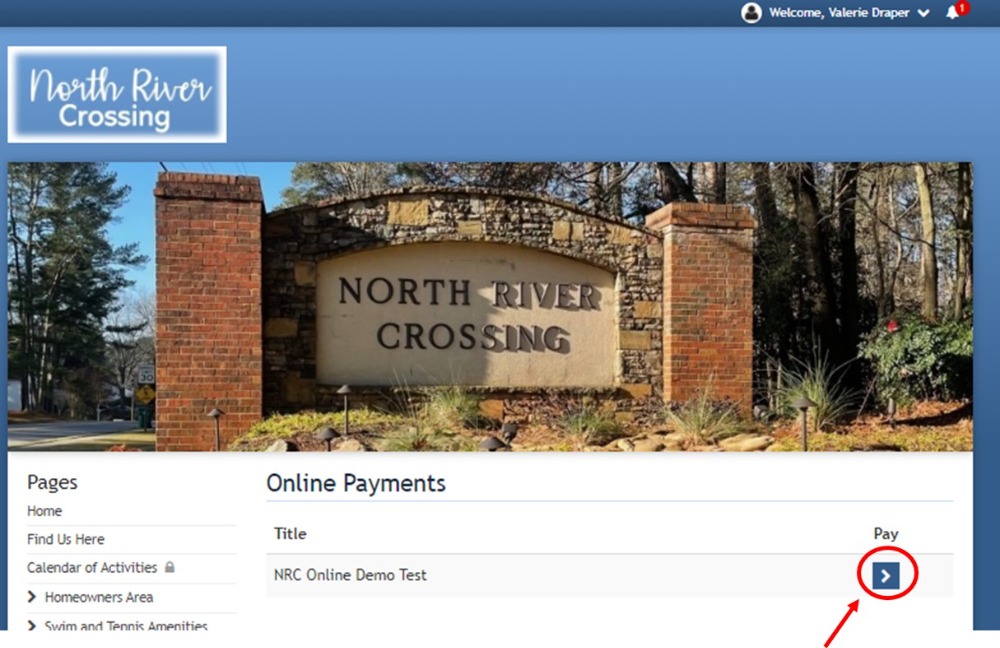
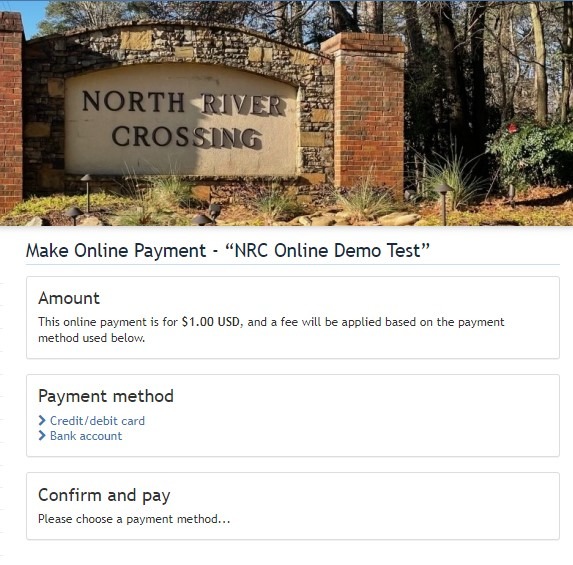
Step 4: You are now ready to make an online payment. Choose to pay by Credit Card or by Bank Account. *Note additional fees will apply when paying by either method. See below for more details if paying by Bank Account (there are additional one time only steps)
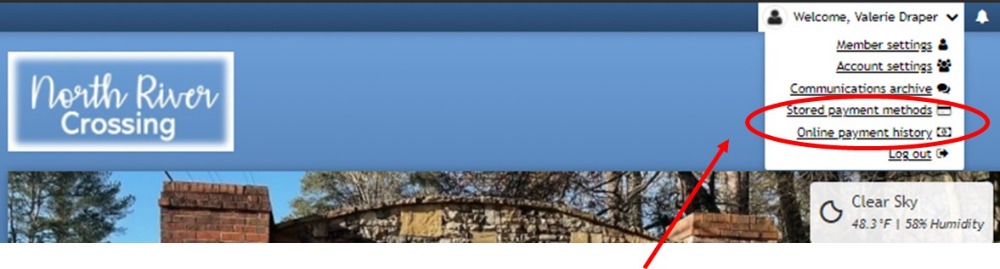
Accessing Online Payment History: You can access your online payment history and/or change your stored payment methods directly from the log-in area.
Paying by Bank Account: Use the link below to find out more details on how this works.
Verifying bank accounts | HOA Express Help Center (hoa-express.com)
Pages
- Home
- Find Us Here
- Calendar of Activities
- Homeowners Only
- How to join the NRC Website?
- Homeowner Directory
- Homeowner Directory Map
- Homeowner FAQ
- Membership Levels
- Board Members
- Contact NRC Board
- By-laws and Covenants
- 2020 By-laws and Covenants
- 2025 Amendment to By-laws
- 2025 Amendment to Covenants
- NRC Original Covenants
- Phase 1
- Phase 2
- Phase 3
- Phase 4
- Phase 5
- I want to volunteer my help!
- I want to host an Event!
- Contractor Recommendations
- Swim and Tennis Amenities
- Membership Overview
- Membership Inquiry
- Pool FAQ
- Contact Pool Committee
- Pool Pavilion Reservations
- Pool Pavilion Calendar
- Reserve My Court
- Peachtree Corners City Info
- PTC Community Contacts
- Local Schools
- Board Member Area
- Board Meeting Minutes
- Board Managed Documents
- Important Documents
- Facebook Group
- News Updates
- Real Estate FAQ
- Website Instructions
- How to Register
- Member & Account Settings
- Update Privacy Settings
- How to make an online payment
- Classifieds